About Modules
What is a Module
Modules are the building blocks of Intent Architect's deterministic guardrails.
Each Module encodes an architectural pattern, such as domain entities, application bootstrapping, ORM mappings or API controllers, and enforces it in your codebase in two complementary ways:
- Deterministically ("hard" guardrails) – The Software Factory applies the pattern from your design blueprints on every run, so a given design produces the same architectural code every time, with no drift. Customizations and deviations are tracked and flagged automatically, so adherence is managed by exception rather than by line-by-line review.
- Probabilistically ("soft" guardrails) – Modules can install AI context files, such as skills and instruction files, so coding agents follow the same patterns when they implement business logic, whether they run inside Intent Architect or in your own harness (for example Claude Code, GitHub Copilot or Cursor).
Because every developer and agent works within the same Modules, architecture stays consistent across teams and projects. Architecture-wide changes are rolled out by updating a Module, rather than by prompting and reviewing every affected file.
Modules share similarities with package systems such as NuGet and NPM. However, while those systems distribute code you call at runtime, Modules distribute deterministic guardrails. Modules have versions and dependencies, but introduce no runtime dependency on Intent Architect. A Module only adds package dependencies (for example, NuGet packages) where its pattern requires them.
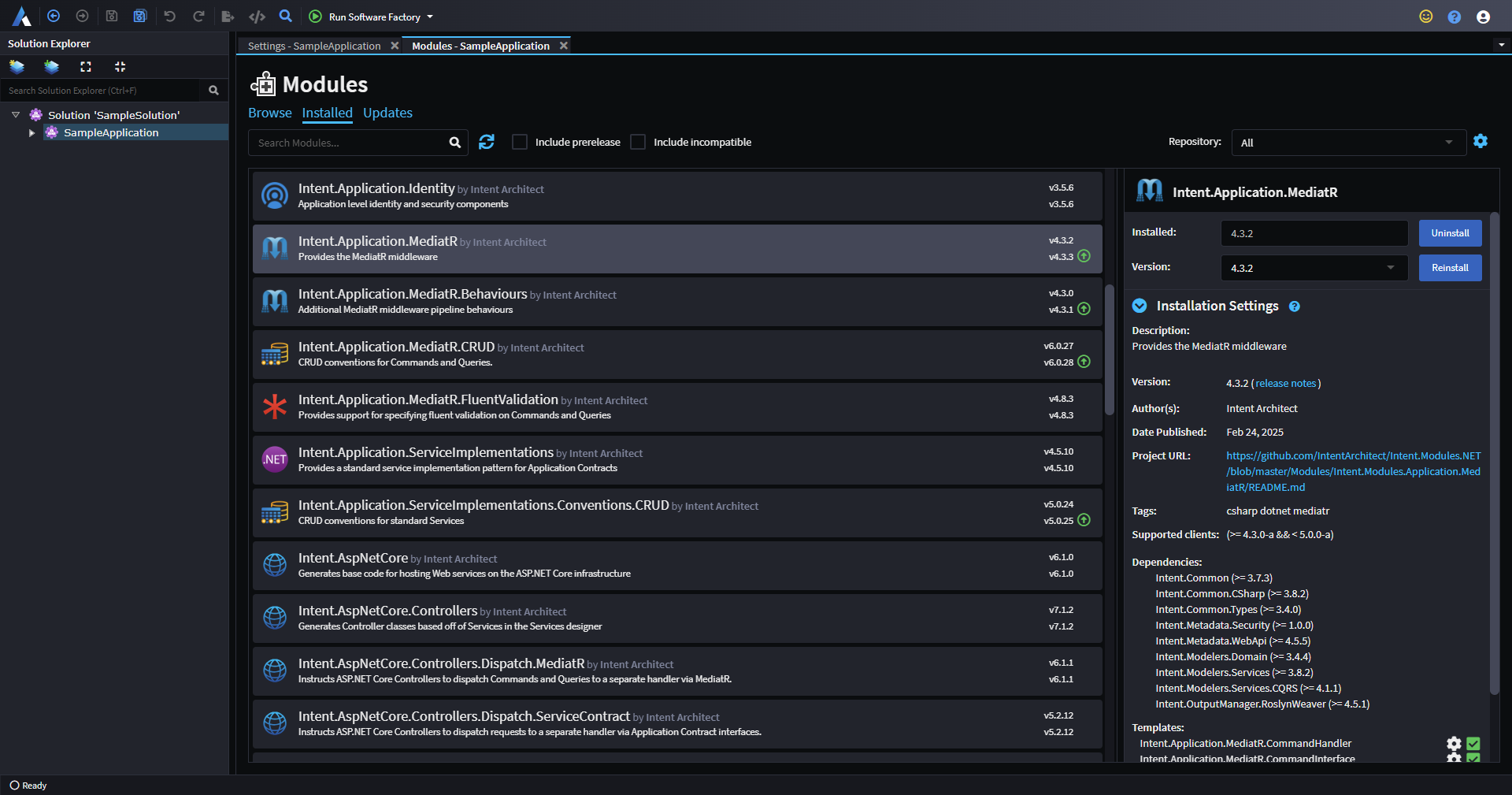
An example showing the list of installed Modules in a sample application. The Intent.Application.MediatR module is selected, with its details displayed in the pane on the right.
Note
When you select an installed Module, Intent Architect provides a view into its internals (i.e., the Templates, Decorators, and Factory Extensions that comprise it).
Module Management
Modules can be managed at either the Solution level (affecting all applications) or the Application level. To access the Module Management screen:
- Right-click on your application or solution in the Solution Explorer.
- Select
Manage Modules....
The Module Management screen includes three tabs:
- Browse – Discover and install new modules from this tab.
- Installed – View the list of currently installed modules.
- Updates – See installed modules with updates available.
Note
By default, this screen only displays official releases. To access pre-releases or betas, enable the Include Prereleases option.
Documentation for modules is available on our website in the respective module sections.
Updating Modules
It is recommended to be on a clean checkout when updating modules. The nature of the update is indicated by the color of the update indicator icon and aligns with semantic versioning:
- Green – Patch update. Should be seamless; typically includes bug fixes or small enhancements.
- Blue – Minor update. Should be seamless; may impact unmanaged code (e.g., upgrading a NuGet package to a new major version).
- Yellow – Major update. Check the module's release notes for important information about the changes.

The module pane includes release notes containing a complete list of changes in each version, along with any upgrade notes (e.g., for major releases).
Installation Settings
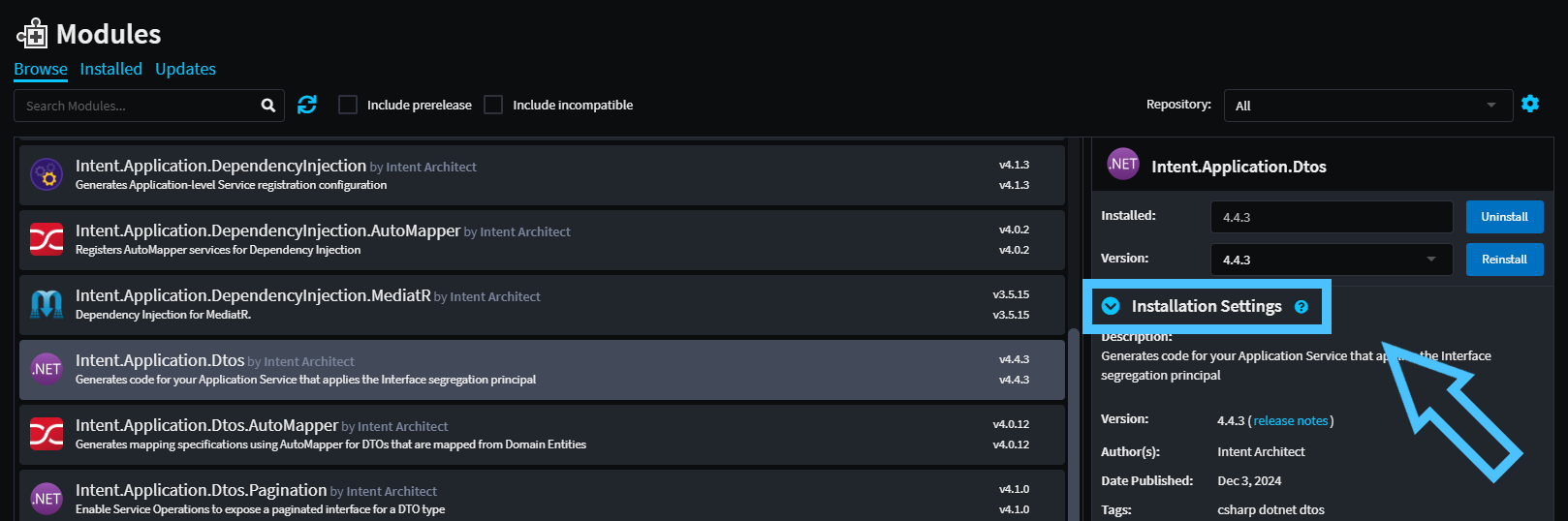
When (re)installing a module, you can expand the Installation Settings dropdown.
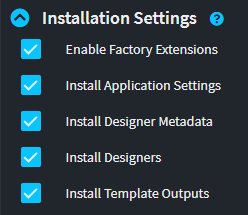
These settings are generally only relevant to those building modules who may want modules installed with selective capabilities enabled:
- Enable Factory Extensions – Controls whether the Software Factory will load any kind of extensions (templates, factory extensions, etc.) from the module.
- Install Application Settings – Controls whether settings from the module should be added to the Application Settings screen.
- Install Designer Metadata – Controls whether designer metadata embedded in the module is installed into designers during initial installation.
- Install Designers – Controls whether designers are installed into the application.
- Install Template Outputs – Controls whether template outputs are installed.