Terminal & Tasks
The Software Factory panel includes a built-in terminal and a configurable task runner. Tasks are shell commands you define once in tasks.json and then trigger from the toolbar - or that AI agents can run via the run_task tool.
The Terminal panel
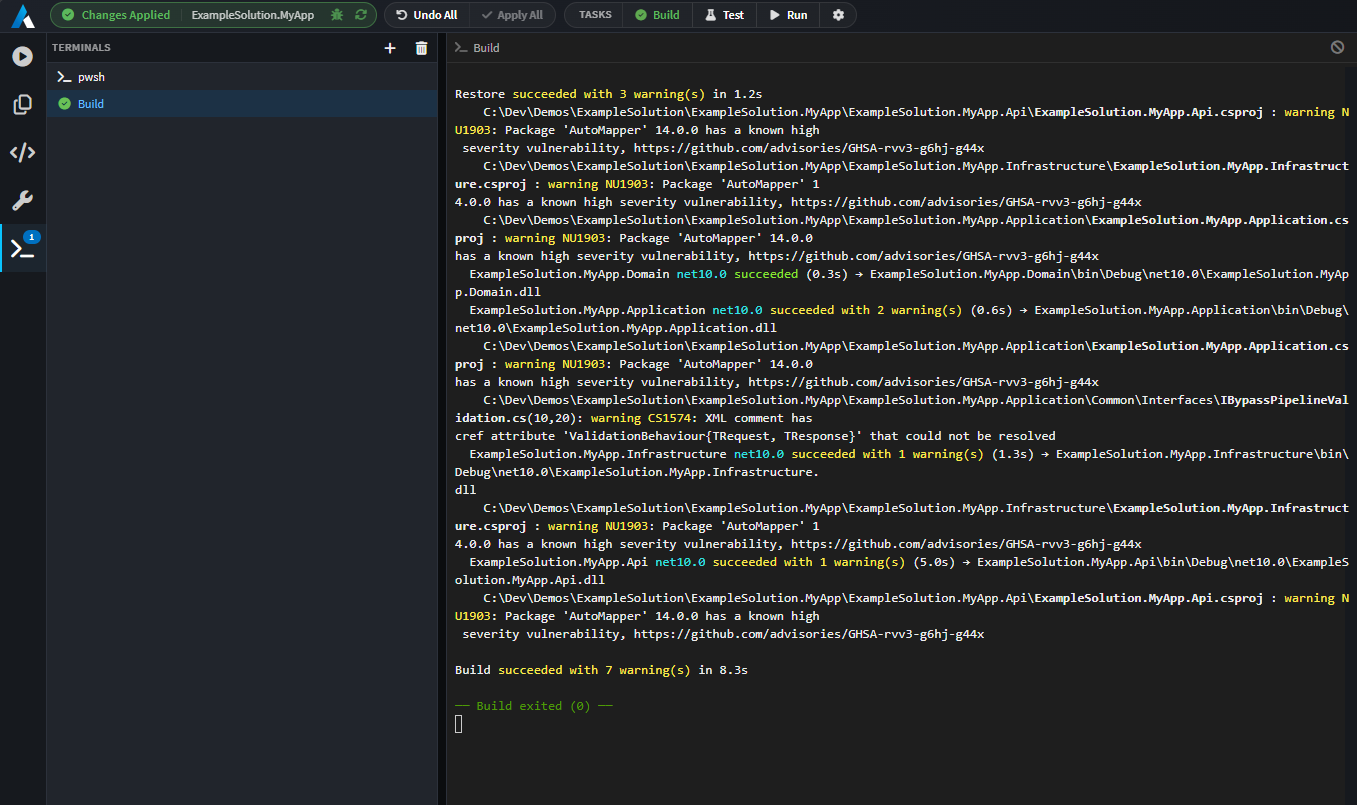
The terminal lives inside the Software Factory view as a side-panel of sessions. Each session is its own tab; the currently selected one is rendered, the rest stay in memory and keep receiving output in the background.
There are two kinds of session:
| Kind | What it is |
|---|---|
| Shell | An interactive shell session. Free-form - type commands and use it like any terminal. |
| Task | A specific task from tasks.json. Re-running the same task reuses its tab so you don't accumulate clutter. |
Default shells
| Platform | Shell used |
|---|---|
| Windows | pwsh.exe (PowerShell 7) if installed, otherwise powershell.exe, otherwise cmd.exe |
| macOS / Linux | The shell from $SHELL, otherwise /bin/bash, otherwise /bin/sh |
Tasks are wrapped by cmd /d /s /c <command> on Windows and bash -c <command> on macOS/Linux, so any shell syntax valid for those is fair game.
Buffer behaviour
- Each session keeps a rolling buffer of up to 5 MB of output. When that's exceeded, older output is dropped and a
[... older output truncated ...]marker is shown. - Switching tabs detaches and re-attaches the renderer but does not lose buffered output.
- Clear wipes the visible buffer (it does not stop the underlying process).
- Remove kills the process (with
SIGTERM) and removes the tab.
Tasks (tasks.json)
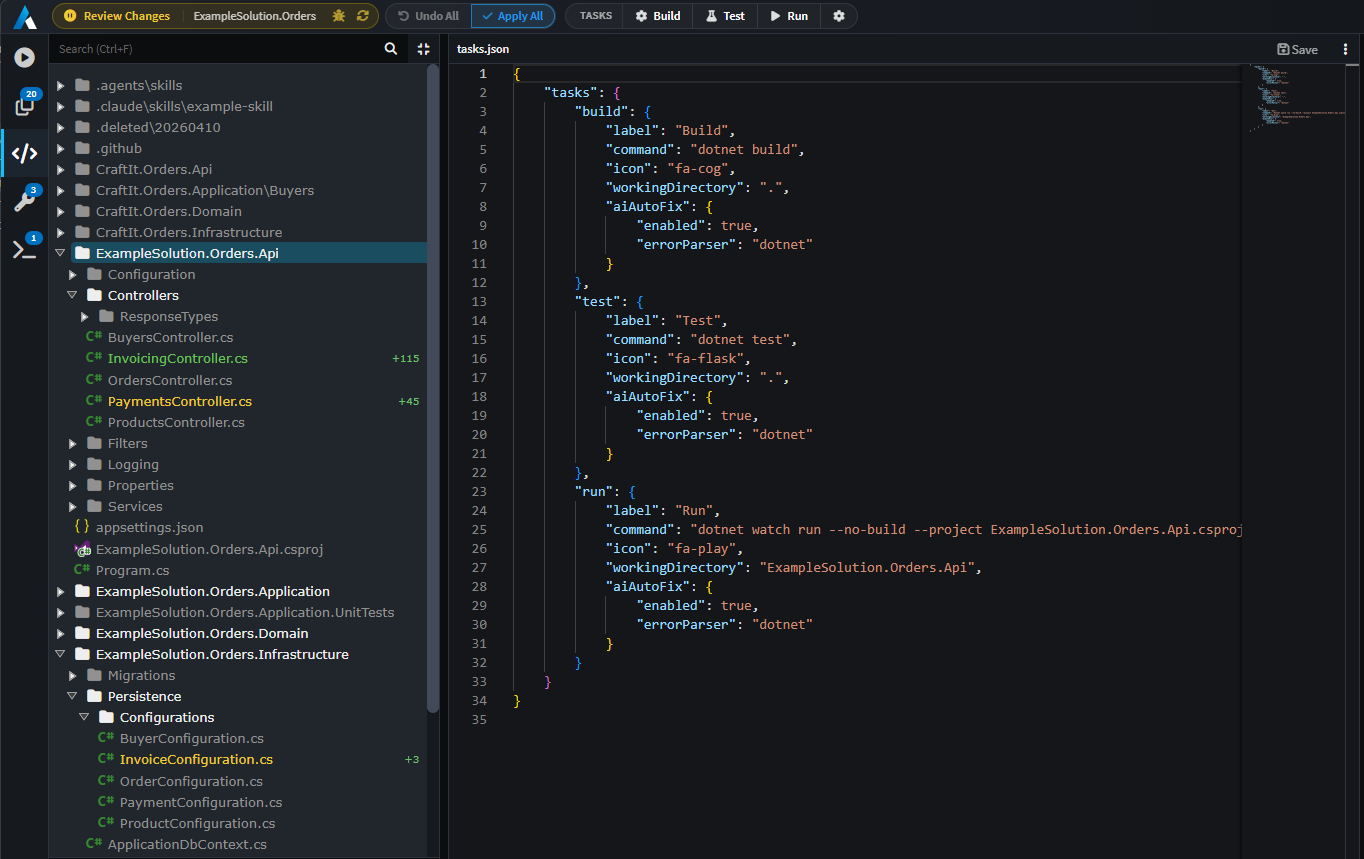
Tasks are commands you configure per-application. Each task becomes a button on the Software Factory toolbar.
Note
Access the tasks.json directly inside of Intent Architect by clicking on the cog icon in the Software Factory toolbar.
File location
tasks.json lives in the application's config folder (next to the project metadata, alongside .intent and similar). The toolbar's Edit Tasks action will create it from a sample if it doesn't exist yet, then open it in the editor.
The file is hot-reloaded - edits made while the Software Factory view is open update the toolbar buttons immediately. No restart needed.
Format
{
    // Each key under "tasks" is the task name (also used by the AI run_task tool).
    "tasks": {
        "build": {
            "label": "Build",
            "icon": "fa-cogs",
            "command": "dotnet build",
            "workingDirectory": ".",
            "aiAutoFix": {
                "enabled": false,
                "errorParser": "dotnet"
            }
        }
    }
}
// line comments, /* … */ block comments, and trailing commas are tolerated.
Task fields
| Field | Required | Notes |
|---|---|---|
label |
Yes | Text shown on the toolbar button. |
icon |
Yes | Font Awesome class (e.g. fa-cogs, fa-play, fa-flask). |
command |
Yes | The shell command to run. Wrapped by the platform shell (cmd on Windows, bash on Unix). |
workingDirectory |
No | Relative to the application's output folder. Defaults to . (the output folder root). |
aiAutoFix |
No | See AI Auto-Fix below. |
The task's key in the tasks object is its name - referenced by the AI run_task tool and used internally for state tracking.
AI Auto-Fix
When a task fails, AI Auto-Fix can hand the failure to a coding agent that attempts to fix it automatically.
"aiAutoFix": {
    "enabled": true,
    "errorParser": "dotnet"
}
| Field | Notes |
|---|---|
enabled |
Master switch for this task. If false, failures are just shown in the terminal and nothing further happens. |
errorParser |
How to extract structured errors from the task output. Built-in: generic (default - line/message heuristics) and dotnet (recognises error CSxxxx: and similar). Unknown values fall back to generic. |
After each attempt the task is re-run. If it still fails, the parsed errors are fed back to the agent for another iteration, up to a maximum of 3 attempts.
Tips
- One task per concern. A
build, atest, alint, amigrate- small, single-purpose tasks compose better than one all-in-one script. - Pick the right error parser.
dotnetknows abouterror CSxxxx:and similar;genericfalls back to line-and-message heuristics. Match the parser to the task's output. - Use
workingDirectoryfor monorepos. If your build needs to run inside a subdirectory of the application output, setworkingDirectoryinstead ofcd-ing insidecommand. - Put long-running watchers in shells, not tasks. A task is meant to start, do a thing, and exit. Use a free-form shell for anything that lives forever (file watchers, dev servers, etc.).