Getting help: Reference & resources
Have a question, issue, or suggestion? Here’s how to find help and get the support you need.
 Ask the AI
 Assistant, and get an answer from these docs
Get an answer with a link to the docs, without leaving the app
──────
 In-app help
Browse contextual tips and how-tos right inside the app
Find in-context answers inside the app
Learn more about in-app help topics→
──────
 Website documentation
Guides and best practices
Explore how-to guides to deepen your knowledge
──────
 Contact support
Can’t find it? Reach our team for personalized help
Reach our team with your question or feedback
Learn how to contact our support team →
──────
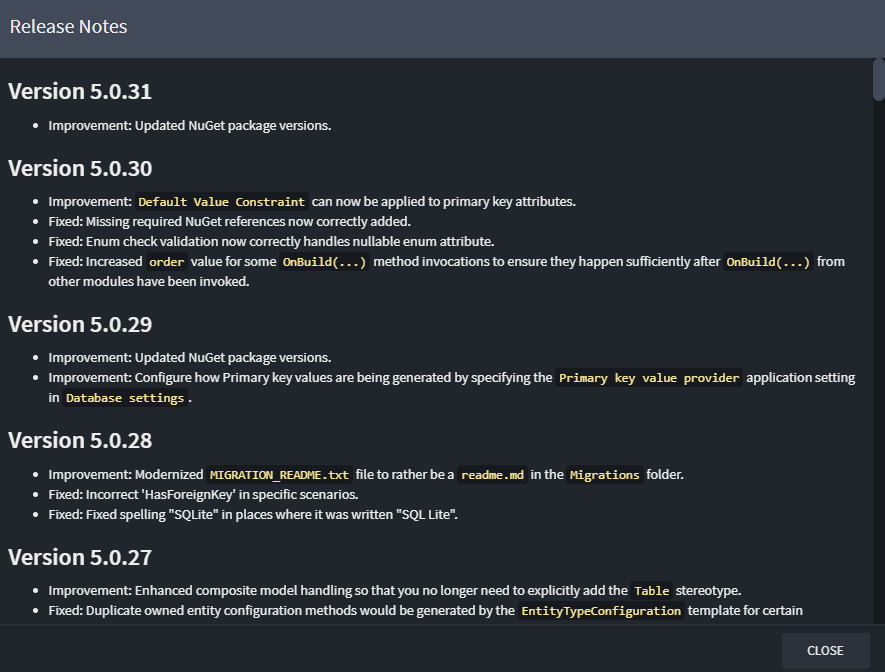
 Release notes
See what’s new, fixed, or changed by version
Check what's new in the latest module versions
Learn more about release notes →
Ask the AI
Not sure how to do something, or what a term means? Open the AI Assistant with F8, choose Ask in the agent menu under the message box, and type your question. Ask searches this documentation before it answers a question about Intent Architect, and links the pages it used. It can also explain your own solution's model and code.
See Ask the AI when you're stuck for how to get answers you can check, and what the AI can't do for you.
In-app help
Intent Architect includes a built-in help system to provide quick access to guidance and documentation.
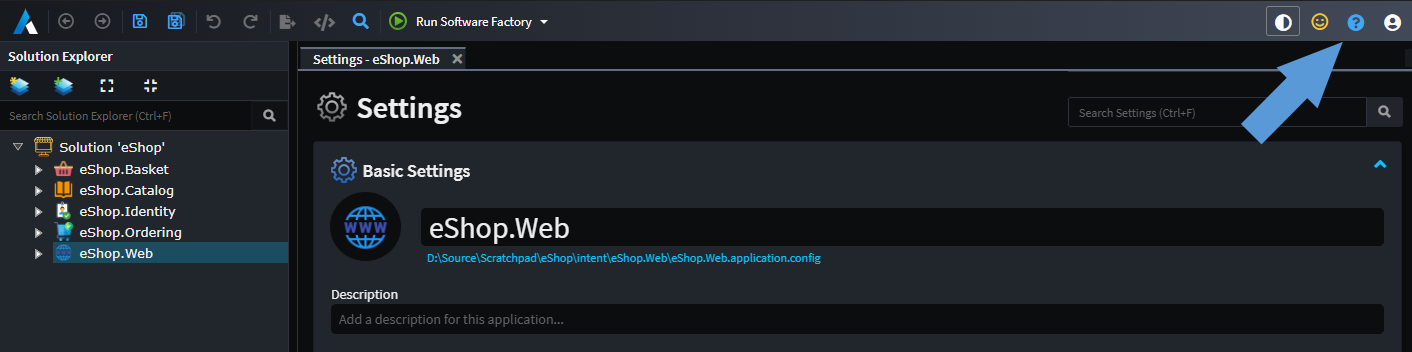
You can open it by clicking the blue question mark button in the top-right corner of the window, or simply by pressing F1.
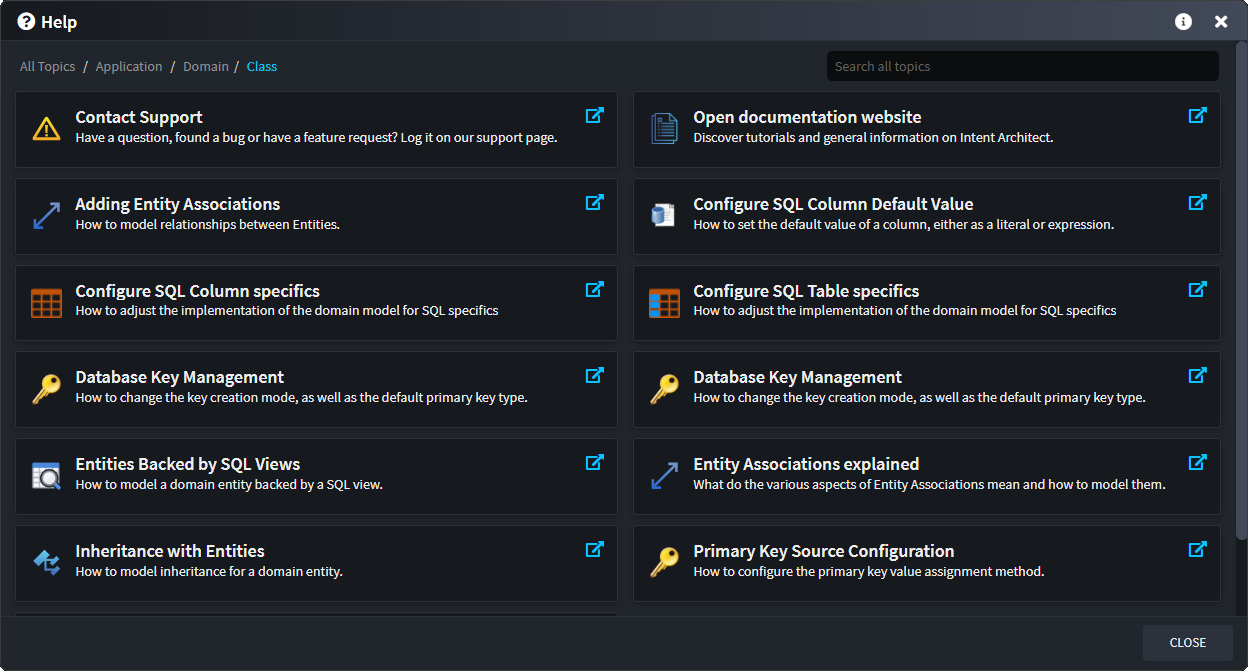
Help dialog
Clicking the help button opens the Help dialog, which displays relevant help topics based on your currently installed modules. This includes context-specific documentation tailored to the currently selected element and open designer. You'll also find quick links to contact support or open the main Intent Architect documentation website.
You can browse through the suggested topics or use the search box to look up keywords. When searching, all available documentation is included - even topics from modules that aren’t currently installed. This makes it easy to discover additional features and functionality you might want to add to your application.
Note
The Help dialog is context-aware by default, showing topics related to the currently active designer and selected elements.
Use the search box to explore beyond your current context or to discover features from other modules.
Contact support
Need help, request a feature or share feedback? Here are a few ways to get in touch with us:
Tip
If the problem is with an AI chat, type /diagnostics in that chat first. Gather Diagnostics saves the chat's logs and session details as a zip in your Downloads folder, ready to attach to your email or GitHub issue. No API keys or credentials are included.
 Email us
Have a question or issue?
Reach out to us via email →
──────
 GitHub issues
Log a ticket on our public GitHub support repository or browse existing issues for answers.
Tip
You can also find this link inside the in-app help documentation
──────
 In-App feedback
Send feedback or rate the application directly within the app using the yellow face feedback icon in the top bar:

──────
 Teams / Slack
You can also contact us through your company’s dedicated Teams or Slack support channel.
Release notes
On the Modules screen, each module includes a link to its release notes.
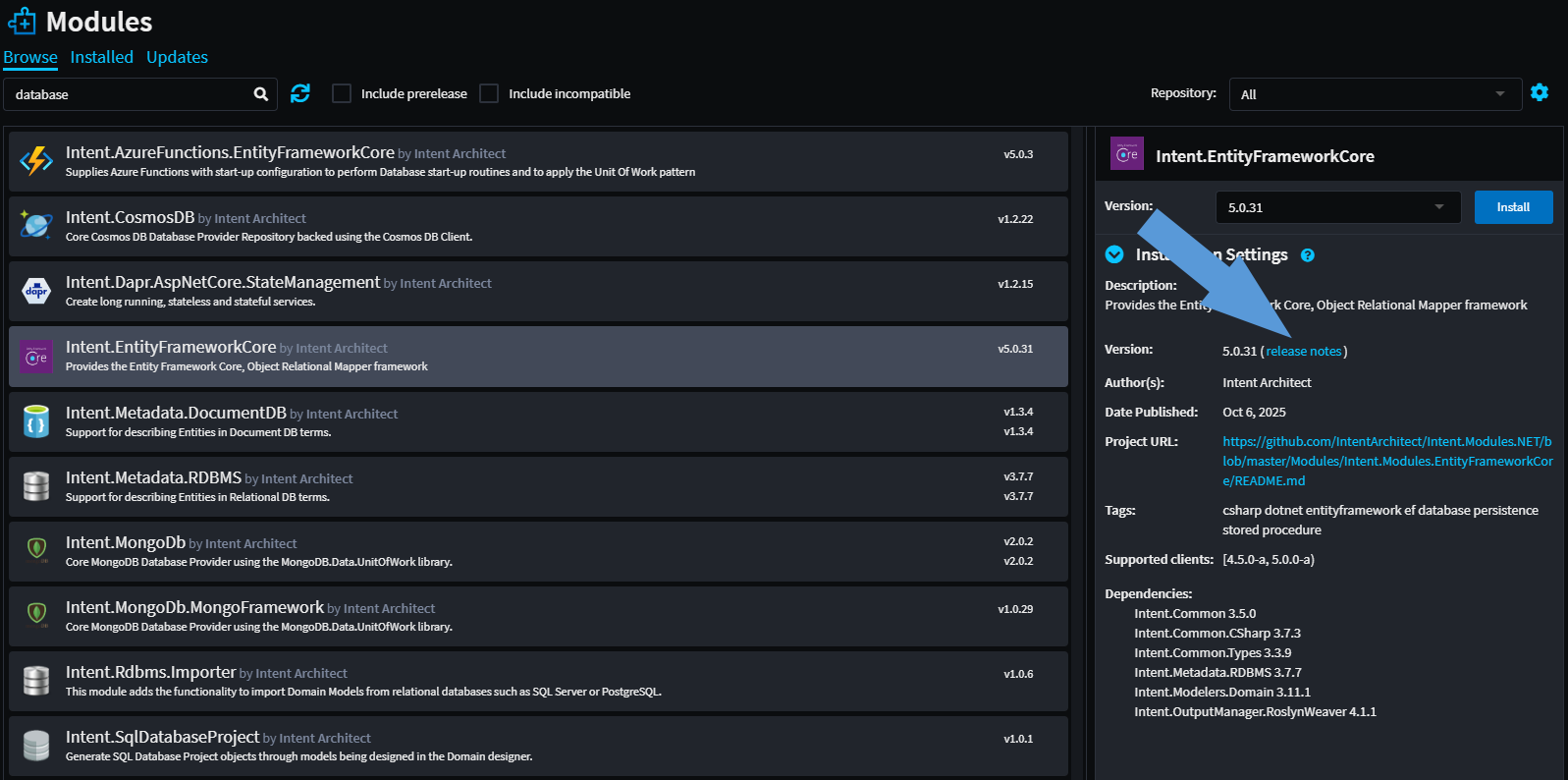
Clicking Release Notes displays a versioned list of enhancements, bug fixes, and new features for the module.