Connect an MCP server to your chat
Copying work items, tickets or messages into the chat by hand? Connect that system's MCP server instead, such as Azure DevOps, Jira or Slack, and the agent can read and update it itself, in the same chat in which it works on your code.
An MCP server is a small program, or a web endpoint, that gives an AI agent a set of tools for one system. This guide connects Azure DevOps as the example. The steps are the same for any MCP server: the vendor's documentation tells you what to enter.
Add the server on the MCP Servers tab of AI Configuration
In the Solution Shell, click ⋮ (More actions) at the top of the AI Assistant, choose AI Configuration…, and open the MCP Servers tab.
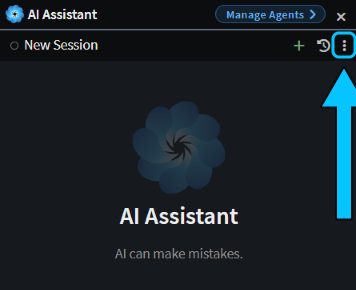 The More actions button at the top of the AI Assistant.
The tab has two lists. Choose where the server belongs, and click its Add server button:
- Global servers are available in every solution you open, and stay on your machine.
- Solution servers are available only in this solution, and are saved in a file you can commit for your team.
Then fill in the server:
- Enter a Name, such as
azure-devops. - Choose the Transport the vendor documents. stdio starts a program on your machine: enter its Command and its Arguments, one per row. http connects to a web endpoint: enter its URL.
- Click Save Changes.
For Azure DevOps, use Microsoft's local Azure DevOps MCP server: stdio, with the command npx and the arguments -y, @azure-devops/mcp and your Azure DevOps organization name. Microsoft also hosts an http version, but chats on Claude Code only get stdio servers, so the local one works in every chat.
Note
Run the server's command once in a terminal before you add it, for example npx -y @azure-devops/mcp --help. The first run downloads the package, which can take half a minute: longer than the connection test or a Claude Code chat waits for a server to start. A chat that stops waiting carries on without the server's tools.
Check that the server connects on the MCP Servers tab
When you save, Intent Architect starts the server to test it. The status next to its name shows Testing…, then:
- Connected: the server started and listed its tools. Click it to test again.
- Retry: the server didn't start or didn't answer. The error shows under the server, and when you hover over Retry. Fix the setting and save it, and Intent Architect tests it again.
- Sign in: an http server needs you to sign in. Click it and approve access in your browser.
- Disabled: you turned the server off with its power button, so no chat gets it.
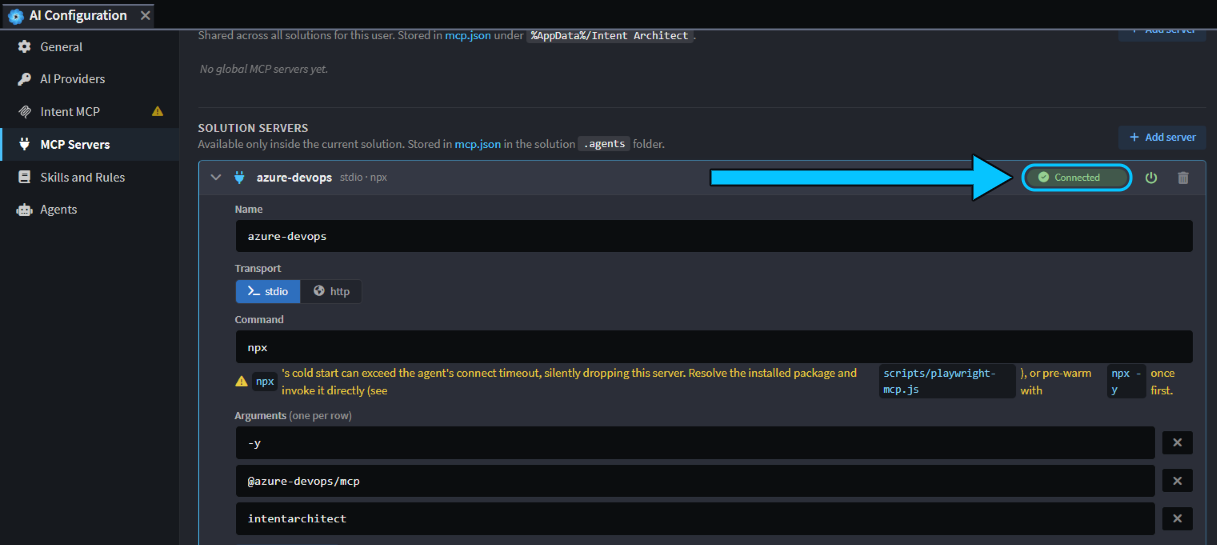 The Azure DevOps server added under Solution servers, showing Connected.
The Azure DevOps server signs in with your Microsoft account the first time the agent uses one of its tools. If your browser asks, sign in with an account that can see the organization.
Use the server's tools from a chat in the AI Assistant
Start a new chat in the AI Assistant after you add or change a server. A chat that's already open on Claude Code keeps the servers it started with.
Name the system in your prompt, so the agent knows to use the server's tools:
List the Azure DevOps work items assigned to me, and tell me which one looks quickest to finish.
The agent listed the organization's projects, fetched the five work items assigned to me, read the one it picked in full, with its comments, and explained its choice. The chat lists each tool call, so you can see what it read.
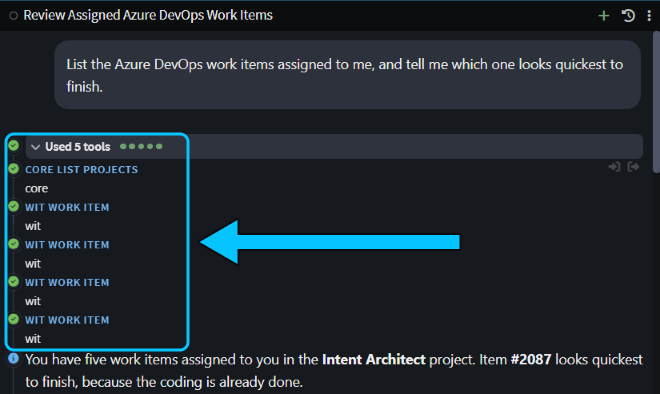 The agent calls the Azure DevOps server's tools from the chat.
Warning
Intent Architect's own agent calls a server's tools without asking you first, even in Ask before edits mode. That includes tools that change data, such as creating a work item. A chat on Claude Code follows its permission mode. Give each server an account or token with only the access you want the agent to have.
Share an MCP server with your team
Solution servers are saved in .agents/mcp.json, in the folder that holds your .isln file. Commit that file, and your teammates get the same servers when they open the solution. The Azure DevOps example holds no secrets, because each person signs in with their own Microsoft account.
Intent Architect encrypts what you enter under Environment variables and Headers before it saves them, so only you can read them, on your machine. Keep tokens out of a file you share: add a server that needs one under Global servers instead.
Limitations
- Claude Code chats only get stdio servers. To use an http server, pick a model from one of your AI providers for that chat instead, or use the vendor's stdio server if there is one.
- Claude Code chats only get Solution servers when your
.islnfile is at the root of the chat's folder, which is usually your Git repository. If it's in a subfolder, such asintent, add the server under Global servers instead. - Vendor setup changes. The command, package name and sign-in steps belong to the vendor, so follow their documentation if the example no longer works.
Related articles
- AI Configuration - every tab of AI Configuration.
- Use Claude Code, Cursor or Copilot with Intent Architect - connect your coding agent to Intent Architect's own MCP server, the opposite direction to this guide.