Vibe coding, Plan Mode or Spec-Driven Development: when to use which
Get the outcome you're after by working with the agent the right way for the job. Got a quick question or an easy fix? Just prompt it. Got a larger goal in mind? Have it plan first, so you agree the approach before anything changes and get a better result. Building something whose requirements must be proven and stay true after it ships? Use Spec-Driven Development.
This guide compares the three, then shows how to start each one.
Compare vibe coding, Plan Mode and Spec-Driven Development
| Vibe coding | Plan Mode | Spec-Driven Development | |
|---|---|---|---|
| Best for | A quick question or a change you can describe in a sentence or two | A larger goal, or one with more than one way to do it | Requirements that must be agreed in detail, proven when the work is done, and kept true after it ships |
| What you agree before it starts | Nothing, though the agent asks when something's unclear | The plan: the approach, the changes and the steps | The requirements, then the design, then the tasks |
| What's left afterwards | The change | The change, plus the plan in intent/.plans |
The change, plus specs in intent/.specs |
| Traceability | None beyond your Git history | The plan explains the approach, but isn't linked to the code | Both ways: from each requirement to the model elements and code that realize it, and from any change back to the requirements behind it |
| Stays true later | No | No. The plan records what you intended at the time | Yes, through Capability specs. Before the agent changes what one covers, it updates the spec and asks you to review it |
| Time on the sample below | 3 minutes | 9 minutes | 44 minutes |
Start with the lightest one that fits. If a prompt turns out to be bigger than you thought, stop and plan it. If a plan turns up rules that must hold from now on, write a spec.
The times come from running each one on the same small .NET sample, with Claude Code as the agent.
Vibe code by prompting the agent in the AI chat
When you know what you want and can check the result yourself, just ask. Open the AI chat, check that Agent is selected in the agent picker below the message box, and type what you want. Agent makes the whole change: the model, the generated code and your custom code. When something's unclear, it asks first.
With "Add a Notes property to Order and include it in the order DTOs.", the agent found there were no order DTOs yet and asked whether to add an endpoint or change only the domain. It then added Notes to the model, the entity and its database configuration, in under 3 minutes.
Plan first with Plan Mode in the AI chat
For a larger goal, or one where there's more than one way to do it, have the agent plan first. Pick Plan in the agent picker, or press Shift+Tab in the message box before you send your first message.
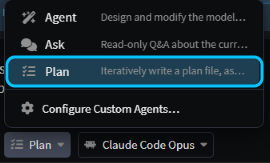
Plan reads your model and code but changes nothing. It asks about anything it can't decide, then writes the plan to intent/.plans and opens it beside the chat, where you can read and edit it. The Plan ready for review card then asks how to go on:
- Yes, and auto-approve builds the plan and approves every tool call that follows.
- Yes, and manually approve builds the plan, but asks before each write or risky tool call.
- No, keep planning keeps the conversation going.
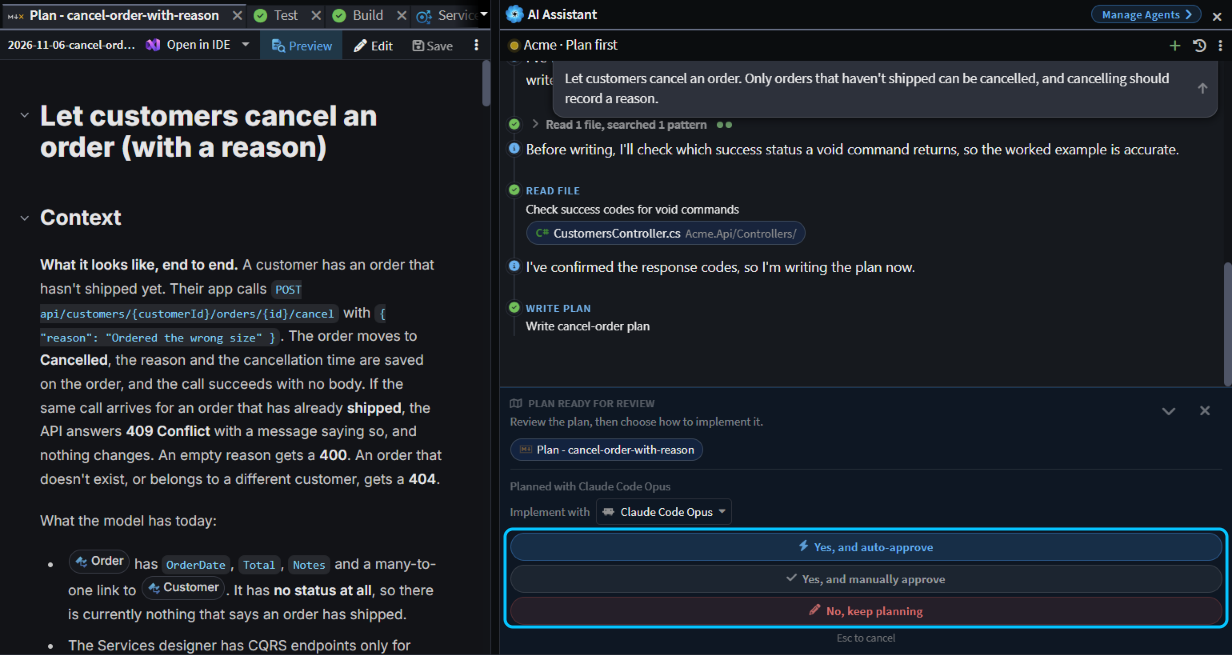 The plan for cancelling an order, with the card's three choices boxed.
When you approve, the chat switches back to Agent, which starts fresh from the plan.
With "Let customers cancel an order. Only orders that haven't shipped can be cancelled, and cancelling should record a reason.", Plan asked three questions: how an order gets marked as shipped, who may cancel, and what form the reason takes. The plan was ready in about 4 minutes. Building it took another 5: a status on Order, a cancel command and endpoint, and five unit tests.
Tip
To check and correct a plan before it's built, with comments, question answers and a choice of model, see Get it right the first time with Plan Mode.
Use Spec-Driven Development when requirements must stay true
Use a spec when the requirements need agreeing in detail before anything is built, when you need to show that each one was met, or when they must keep holding after the work ships: business rules, pricing, anything a reviewer or auditor will ask about later. A spec is a written set of requirements that the agent designs, builds and is checked against.
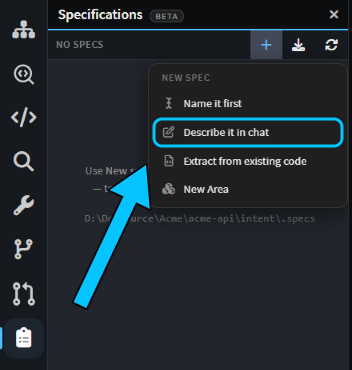
To start one, open the Specifications panel from the activity bar, click + (New spec) and choose Describe it in chat. A new chat opens with /sdd-run already typed. Describe the feature under it and send.
One chat then takes the spec through requirements, design, tasks, implementation and verification. It asks about the edge cases, and after the requirements, the design and the tasks it stops so you can read the document and click Approve & continue or Request changes. As it builds, it records traceability: links from each requirement to the model elements and files that realize it. Finally, a separate agent checks each requirement against the code and tests, and asks you how to settle anything that doesn't match.
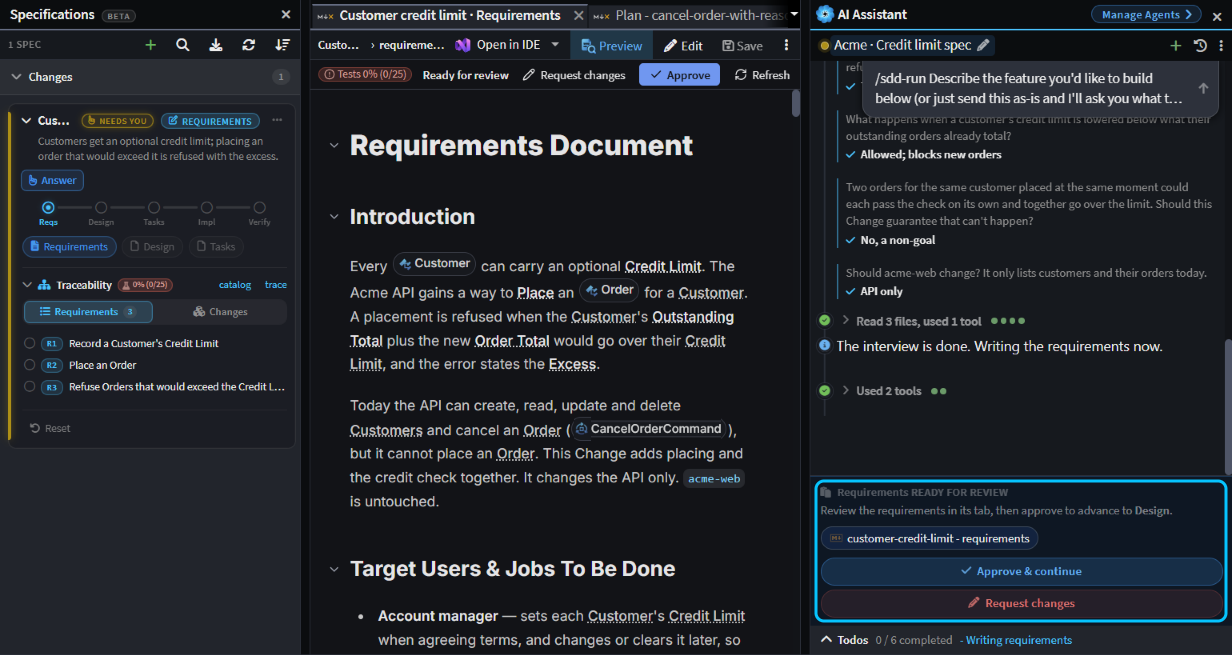 The requirements gate, with the spec's phases and requirements in the Specifications panel.
That traceability runs both ways. From a requirement, the spec's card in the Specifications panel lists the model elements and files that realize it. From a changed element or file, Change Review shows the requirements behind it. So when someone asks why a piece of code exists, or whether a requirement was actually built, the spec has the answer.
With "Customers have a credit limit. Placing an order must be refused if the customer's outstanding orders (placed but not cancelled) plus the new order would take them over their limit, and the error should say by how much.", the run asked eight questions about edge cases, such as what happens when a limit is lowered below what a customer already owes. It reached done after 44 minutes, with three requirements and all 25 of their acceptance criteria covered by tests. Larger features take longer, because each wave of tasks runs in turn, and a big one can run for hours.
Keep Capability specs in sync after the work ships
There are two kinds of spec, both saved in intent/.specs next to your code for you to commit:
- A Change spec covers one piece of work, such as the credit limit above.
/sdd-runwrites one, and once it's done it's archived. - A Capability spec is a living spec of how one area of your system behaves now. Only Capability specs are kept in sync as the code changes.
When a Change is done, the /sdd-run chat folds its requirements and traceability into the Capabilities they belong to. On the sample it asked how to split them, created Customers and Orders Capabilities, and archived the Change.
From then on, the agent keeps those Capabilities in sync. Asked later to "Allow order notes up to 2000 characters.", it changed the Orders Capability first and asked for a review before it touched any code. The Specifications panel showed Re-check on Orders until the change was built and checked again.
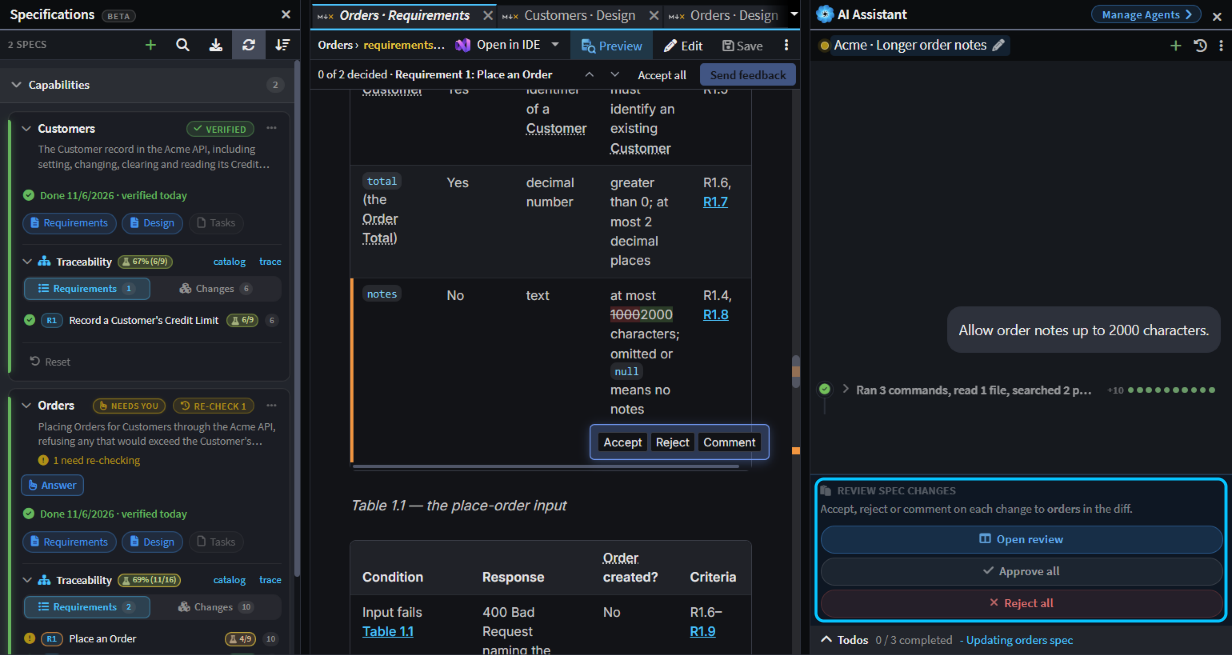 The agent's change to the Orders Capability, waiting for review before any code changes.
Tip
A spec run takes a while. Start it in the Agents Shell with worktree ticked and carry on with your own work; see Run agents in parallel.
Related articles
- Spec-Driven Development - the phases, the Specifications panel and traceability in full.
- Built-in Agents - what Agent, Ask and Plan can each do.
- Change Review - reviewing what an agent changed.
- Run agents in parallel - running long tasks in their own worktree while you work.