Run agents in parallel
To really leverage the power of AI, you need to be running agents in parallel: one fixing a bug, another looking into a release branch, a third starting the next feature, while you carry on with your own work. Give each task its own copy of your code so no agent touches your files or another agent's, and merge its work back once you've reviewed it.
This guide shows how to start, track, review, merge and clean up chats that each have their own worktree.
Start an Agents Shell chat in its own Git worktree
A Git worktree is a second checkout of the same Git repository, in its own folder and on its own branch. It shares the repository's history, so a commit made in one is visible from the other.
In the Agents Shell:
- Click Manage Agents on the Home screen, or in the Solution Shell's AI Assistant header, to open the Agents Shell.
- Click + (New session) at the top of the Sessions panel, or press
Ctrl+N. - In the composer, pick the folder, and check that the branch chip shows the branch to start from.
- Tick worktree. Its new branch appears beside it,
agent/<id>by default. Click it to rename it, for example tofeature/customer-company. - Type your prompt and send it.
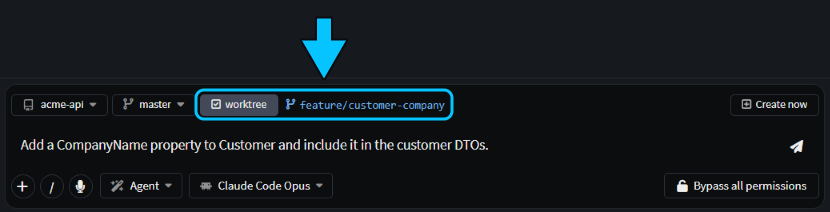 worktree ticked, with its branch renamed to
feature/customer-company.
Note
The worktree chip needs a chat that runs on a CLI agent, such as Claude Code, Codex or GitHub Copilot CLI (see CLI Agents as AI Providers), and a Git repository with at least one commit.
On the first send, Intent Architect creates the worktree in ~/.worktrees/<repository>/<branch>, or under the Worktree Location in User Settings, and starts the agent there. Your own checkout isn't touched, so you can keep working in it.
Warning
Fork on a chat's right-click menu puts the copy in the original's worktree and branch, so both agents work in one checkout. For another task, start a new chat with worktree ticked instead.
With "Add a CompanyName property to Customer and include it in the customer DTOs.", the agent added CompanyName and left 13 changed files uncommitted on feature/customer-company. Two other chats had their own worktrees at the same time, one writing a README and one waiting for an answer, and the main checkout stayed clean.
Tip
Forgot to tick worktree? When the agent has stopped, click the folder name above the message box and choose Change location…. The agent starts again there, with a summary of the chat so far.
Track running chats in the Agents Shell
The Sessions panel lists every chat with the branch it's on and, when there's uncommitted work, how many lines it has added and removed. Hover a chat's status dot for where it is: In progress, Waiting on your answer or Completed. Click Search sessions to filter a long list, and see Stay on top of many agents at once for working through many chats at once.
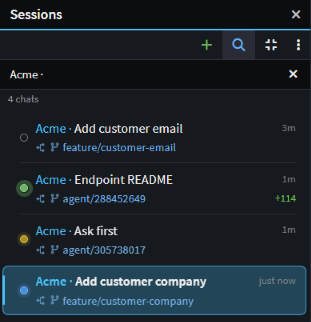 Four chats in their own worktrees: two completed, one waiting on an answer and one in progress.
While Intent Architect is in the background, it shows an OS notification when a chat finishes or needs your input, and a badge on its taskbar icon. You can switch both off under Notifications in User Settings.
Tip
A chat's agent can start chats like these for you: ask it to split a task into child chats, each in its own worktree. They're listed under that chat on the Sessions panel. See Split a big task across child chats.
Review and merge a worktree chat's work in the Agents Shell
Select the chat on the Sessions panel. The panels on the right follow its worktree, so you deal with each chat's work on its own:
Review the changes. Ask the agent to review them with a review skill, look through them in Source Control, or click the flag button in its toolbar to open them in Change Review.
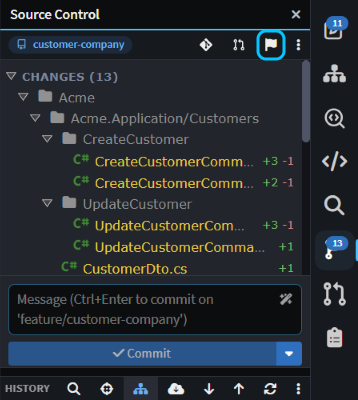 The flag button (boxed) opens the chat's uncommitted changes in Change Review.
Merge the changes or create a pull request. Ask the agent to merge its branch into yours, or do it yourself from Source Control: commit, open Git Explorer, right-click your branch and choose Merge current branch "…" into "…".... If your team uses pull requests, ask the agent to create one, or see Pull Requests.
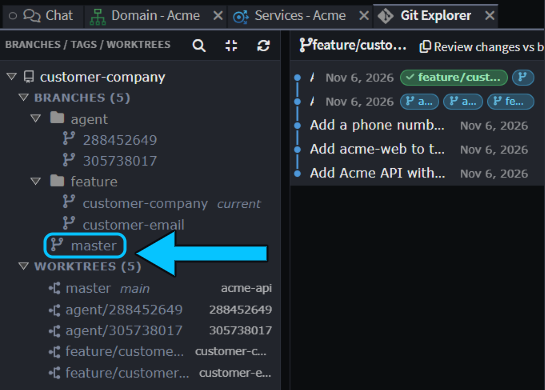
Worktrees keep agents apart while they work, but merging can still conflict when two chats changed the same lines. If it would, nothing is changed: have the chat bring your branch into its worktree and resolve the conflicts there, then merge again. See Resolve merge conflicts with AI.
Clean up a chat's worktree in the Agents Shell
When a chat's work is merged or dropped, right-click it on the Sessions panel and choose Archive and Delete Worktree. It deletes the worktree folder and archives the chat, keeping its history.
- If the worktree has uncommitted changes, you're asked first: they're lost, but commits on the chat's branch are kept.
- The branch is deleted only if this chat created it and it's already merged into a remote. After a local merge, delete it yourself with Delete branch "…"... on its right-click menu in Git Explorer.
- If another chat still uses the worktree, such as a fork, the folder is kept.
Things to be aware of with Agents Shell worktrees
A new worktree only has committed files, so git-ignored ones such as node_modules, .env files and restored packages are missing until something puts them there:
.worktreeinclude, at the root of the Git repository, lists git-ignored files and folders to copy into each new worktree, in.gitignoresyntax. It's the same file Claude Code reads, and Intent Architect creates one with each new solution.- If you want to run scripts that set up each new worktree, such as
npm install,dotnet restoreor building your LESS stylesheets, add a setup task: a task in the solution'stasks.jsonwith"triggers": ["worktree.created"]. It runs in the new worktree before the agent starts. See Set up tasks so the agent can build, test and run your app.
Related articles
- Agents Shell and Solution Shell - how the Agents Shell and the Solution Shell differ, and switching between them.
- Manage Agents - everything the Agents Shell can do.
- CLI Agents as AI Providers - setting up Claude Code, Codex and other CLI agents.
- Change Review - reviewing what an agent changed.
- Pull Requests - creating and reviewing pull requests in Intent Architect.
- How to change user settings - Worktree Location and Notifications.
- Terminal & Tasks - the
tasks.jsonformat.