Custom Agents
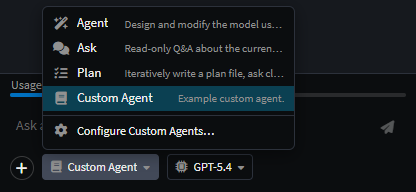
Custom agents let you tailor the AI experience for your solution - defining a specialist purpose, scoping tool access, and shaping behaviour with a focused system prompt. They appear in the AI chat dropdown alongside the built-in agents and can be invoked the same way, including via slash commands.
File location
Custom agents live in your solution's .agents/agents/ folder:
~/MySolution/
└── .agents/
    └── agents/
        ├── reviewer.agent.md       ← bespoke modeling reviewer
        ├── coding.agent.md         ← overrides the built-in Coding agent
        └── api-designer.agent.md   ← bespoke modeling agent
The agent's id is the filename minus .agent.md. Two consequences:
- Overriding a built-in - drop a file with the same id (e.g.
coding.agent.md) to replace the shipped agent for this solution only. - Adding new agents - any new id appears as a fresh entry in the agent dropdown.
See Agent Context Loading → Folder Structure for how this folder fits into the wider per-context layout (instruction files, skills, etc.).
Creating a .agent.md File
An agent file is YAML frontmatter followed by a markdown body that becomes the system prompt:
---
name: API Designer
description: Designs HTTP APIs against the model
icon: fa-plug
context: modeling
tools:
  - get_designer_model_snapshot
  - find_designer_elements
  - apply_change_model_operations
  - ask_user_question
maxIterations: 12
loopOnToolCalls: true
---

You are a modeling agent specialised in designing HTTP APIs…
Frontmatter fields
| Field | Type | Required | Notes |
|---|---|---|---|
name |
string | yes | Display name shown in the chat dropdown |
description |
string | yes | One-line summary shown beside the name |
icon |
string | no | A Font Awesome class (e.g. fa-magic); shown next to the name |
context |
coding | modeling | list of either |
yes | Which context the agent operates in |
tools |
string list | yes | Tool ids the agent can call - see Agent Tools. The use_skill tool is always added implicitly |
maxIterations |
number | no | Max tool-call rounds before the agent stops on its own (default 8) |
loopOnToolCalls |
boolean | no | Whether the model is re-invoked after each tool call (default true) |
The body - your system prompt
Everything after the closing --- becomes the agent's system prompt. Write it as direct instructions to the model:
- Lead with the agent's purpose in one sentence.
- Describe its workflow (e.g. Analyze → Design → Apply → Verify).
- Spell out hard constraints ("Never edit generated code by hand").
- Note any voice/tone expectations if relevant.
Plain markdown is fine - headings, lists, fenced examples - it's all passed through to the model.
Choosing tools
The tools: list controls what the agent can actually do. An agent with no tools listed can only converse. The toolbox is shared between contexts, so the right set depends on the agent's job.
| You want… | Common tool bundle |
|---|---|
| Read-only modeling Q&A | get_designer_model_snapshot, get_designer_element_details, find_designer_elements, get_designer_diagram_snapshot, read_file, grep, glob, search_docs |
| Direct model edits | the read-only set + apply_change_model_operations, apply_change_diagram_layout, execute_designer_element_action |
| Plan-mode modeling agent | the read-only set + write_plan, ask_user_question, implement_plan, todo_update |
| Custom coding agent | read_file, write_file, patch_file, delete_code_file, grep, glob, list_directory, get_project_overview, run_task, apply_staged_file_changes |
| Cross-context utility | search_docs, read_file, grep, glob - useful for doc-bots and orientation agents |
Full list and what each tool does: Agent Tools.
Note
Tool names that don't match a known tool are silently ignored at startup. If your agent isn't behaving as expected, double-check the tool list for typos.
Examples
Example 1 - A read-only modeling reviewer
reviewer.agent.md:
---
name: Reviewer
description: Reviews recent model changes for consistency and conventions
icon: fa-search
context: modeling
tools:
  - get_designer_model_snapshot
  - get_designer_element_details
  - find_designer_elements
  - get_designer_diagram_snapshot
  - search_docs
  - read_file
  - grep
maxIterations: 6
---

You are a critical reviewer of Intent designer models.

When the user asks for a review:
1. Take a snapshot of the current model.
2. Check naming conventions, missing relationships, and orphaned elements.
3. Report issues as a numbered list with the offending element id.

You never modify the model - your tools are read-only by design.
Example 2 - Overriding the built-in Coding agent
coding.agent.md (replaces the shipped Coding agent for this solution):
---
name: Coding
description: Project-aware coding agent for this solution
icon: fa-code
context: coding
tools:
  - read_file
  - write_file
  - patch_file
  - delete_code_file
  - grep
  - glob
  - list_directory
  - get_project_overview
  - run_task
  - apply_staged_file_changes
  - create_ai_task
maxIterations: 20
---

You are this project's coding agent. Always:

- Read the file before modifying it.
- Prefer `patch_file` over full rewrites.
- Match existing code style.
- Run `dotnet build` via `run_task` after substantive changes.
Example 3 - A multi-context utility agent
doc-bot.agent.md:
---
name: Doc-Bot
description: Searches Intent docs and the codebase
icon: fa-book
context:
  - modeling
  - coding
tools:
  - search_docs
  - read_file
  - grep
  - glob
---

You answer questions by searching documentation first, then reading the codebase if needed. Cite file paths and section anchors in answers.
Invoking your agent
Once an .agent.md file is dropped into .agents/agents/, the agent is picked up immediately - no restart required.
Dropdown - switch to it via the AI chat agent dropdown.
Slash command - type
/agent-id(the filename minus.agent.md) at the start of a chat message to switch agents for that turn.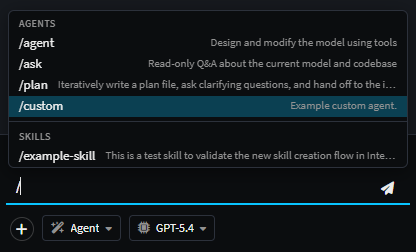
Example
custom.agent.mdfile listing as a slash command.
See also
- Built-in Agents - the four agents shipped by default; useful as templates for your own.
- Agent Tools - every tool you can list under
tools:. - Agent Context Loading - instruction files and skills loaded alongside an agent's definition.