How to change user settings
To access the user settings:
- Click your user Display Name dropdown at the top right-hand corner of the screen.
- Click on
Settings
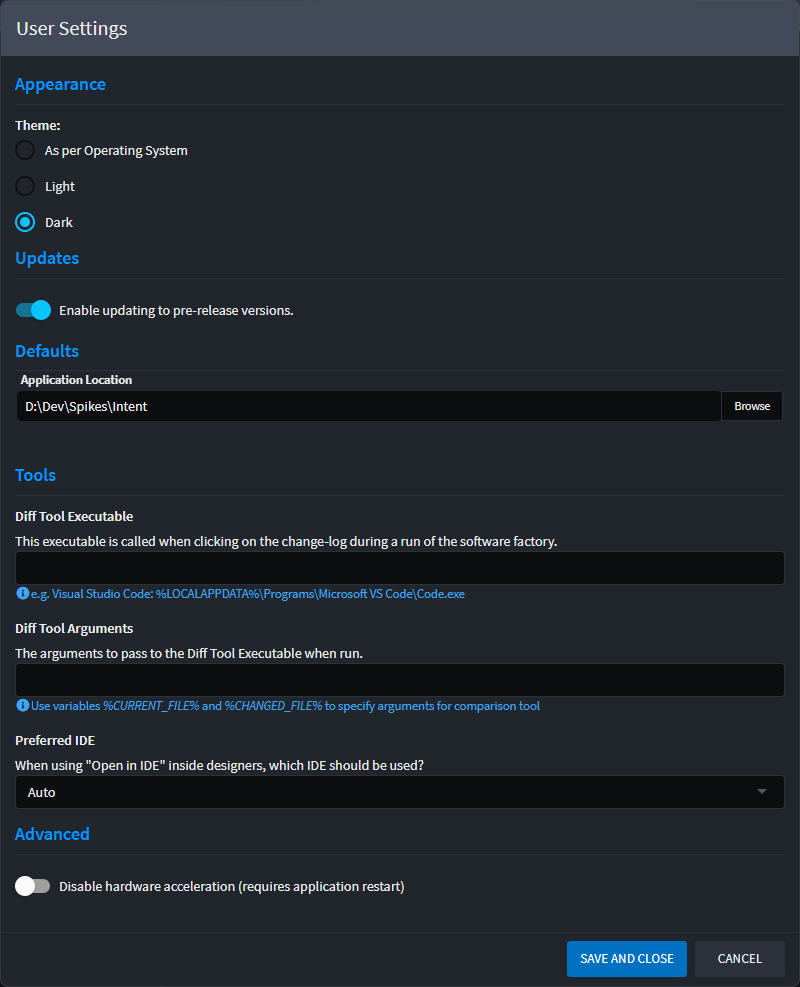
Theme
Choose between dark theme or light. By default Intent Architect will use your operating systems' theme settings.
Updates
From time to time, Intent Architect may release pre-release versions of the product. To be notified and able to update to a new pre-release, enable the Enable updating to pre-release versions toggle. It is recommended that you keep this setting disabled as pre-releases can be less stable than official ones.
Default Application locations
This is the default location that Intent Architect will use when creating a new Application from the home view.
Diff Tools
Intent Architect supports the use of any Diff tool that can be executed from the CLI. By default (if blank), Intent Architect will use Visual Studio Code if it has been installed. It will fall back to using Visual Studio, and finally, if neither can be found, a Diff tool will need to be specified manually here.
Preferred IDE
The IDE to use when using the Open in IDE context menu option from within designers.