Work Items
Work Items is your own to-do list and scratch pad in the Agents Shell. Each Work Item is a short Markdown note, for the informal tasks you keep track of day to day, notes for a piece of work, or a prompt you reuse. The AI agent can read and update them too, and each one lists the chats you started from it, so everything done on it is in one place.
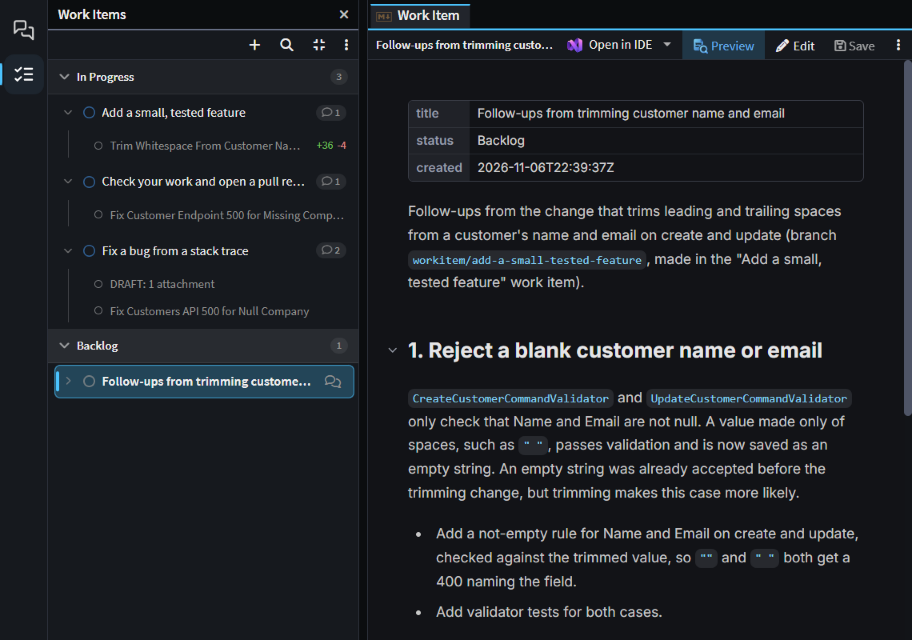 Work Items grouped by status, with one item's linked chats listed under it.
Opening Work Items in the Agents Shell
Work Items is in the Agents Shell only. Click Work Items on the left-hand bar, under Sessions.
- Add an item with + (New work item). It's created as
Untitledin Backlog, ready for you to type its name. - Open an item by clicking it. It opens as a document: click Edit to change it in place, or Open in IDE to change it in your editor. Edits are saved a second after you stop typing.
- Group them by status, In Progress, Backlog and Done, which is the default, or into groups of your own: right-click an item and choose Move to group > New group. View options (⋮) switches between the two, and hides Done items older than seven days unless you turn that off.
- Search matches item titles, their text and the titles of their chats.
Right-click an item for the rest, such as Set status, Priority, Rename and Delete.
Starting and linking chats from a Work Item
Start chat opens a new chat with the Work Item attached and the message box empty, ready for you to add to it before you send. Hover the item and click its Start chat button, right-click it and choose Start chat, or select it and press Ctrl+Enter. By default the chat runs in a Git worktree of its own, on a workitem/<id> branch, where <id> is the item's name in lower case with hyphens. To run these chats in your own checkout instead, turn off Start chats from work items in a worktree under Agents in User Settings.
Chats are linked to a Work Item in three other ways:
- Right-click a chat on the Sessions panel and choose Link to work item, then New work item… or one of your In Progress items.
- Hover a message in a chat and click Create work item from message. The new item holds the message and is linked to the chat.
- Ask the agent to add the chat to an item.
Click an item to list its linked chats under it, newest first, and click one to open it. On the Sessions panel, a linked chat shows an icon that names its Work Item. To remove a link, right-click the chat under the item and choose Unlink from work item.
When a linked chat starts working, its Work Item moves to In Progress. Nothing moves it to Done: that's up to you or the agent.
Letting the agent read and update Work Items
The agent is given the Work Items its chat is linked to and reads them when the link is made, so it knows what the chat is for. In Agent and Plan modes, it can also list, create and update your Work Items, link chats to them, and delete them once you've confirmed. For example, ask it to "Create a work item for the follow-ups from this chat."
Where Work Items are kept
Your Work Items belong to you, not to a solution or a Git repository: you see the same list whichever folder you're working in. Each one is a Markdown file named after the item, with its title, status and dates in front matter.
They're kept in your user profile, in %APPDATA%\Intent Architect\work-items on Windows. To keep them somewhere else, such as a synced folder or a folder you commit to share them, set Work Items Folder in User Settings. Changing it moves them there.
Related articles
- Reuse your best prompts with Work Item templates - reuse a prompt by keeping it as a Work Item and starting chats from it.
- Agents Shell and Solution Shell - the Agents Shell, where Work Items is.
- Manage Agents - everything else the Agents Shell can do.
- Run agents in parallel - running chats in worktrees of their own.