Set up tasks so the agent can build, test and run your app
Give the agent the same build, test and run commands you use, so it can check its own work instead of guessing. Want it to build and test after a change? Add build and test tasks. Want it to try your app? Add a run task it can open in the preview. Starting agents in new worktrees? Add a setup task that gets each one ready first. Every task is a one-click button for you too.
This guide shows how to add tasks, have the agent use them, keep your app running, set up new worktrees and hand failures to AI.
Add build, test and run tasks to the Tasks toolbar
A task is a named command, such as dotnet build or npm test, kept in a tasks.json file. Each task is a button on the Tasks toolbar, and the agent can run it too. The file goes in one of two places:
- The solution's
tasks.json, at the root of the Git repository or in itsintentfolder, for commands that belong to the whole Git repository. These are the only tasks the Agents Shell shows. - An application's
tasks.json, next to its.application.configfile, for commands that belong to one application. They run in the application's output folder.
The quickest way to set them up is to ask the agent. When we asked the Solution Shell's AI Assistant to "Set up a task that starts the Acme API and keeps it running, so you can open it in the preview.", it loaded its built-in skill for tasks, rewrote the existing Run task, ran it to check that it worked, and opened the API in the preview.
To write tasks yourself, click the cog at the end of the Tasks toolbar. If the file doesn't exist yet, it's created with a sample Build task. Changes show on the toolbar as soon as you save:
{
    "tasks": {
        "build": { "label": "Build", "icon": "fa-cogs", "command": "dotnet build" },
        "test": { "label": "Test", "icon": "fa-flask", "command": "dotnet test" }
    }
}
Click a task to run it. Its output opens in a tab named after it, and the button turns green or red. For every field, see Terminal & Tasks.
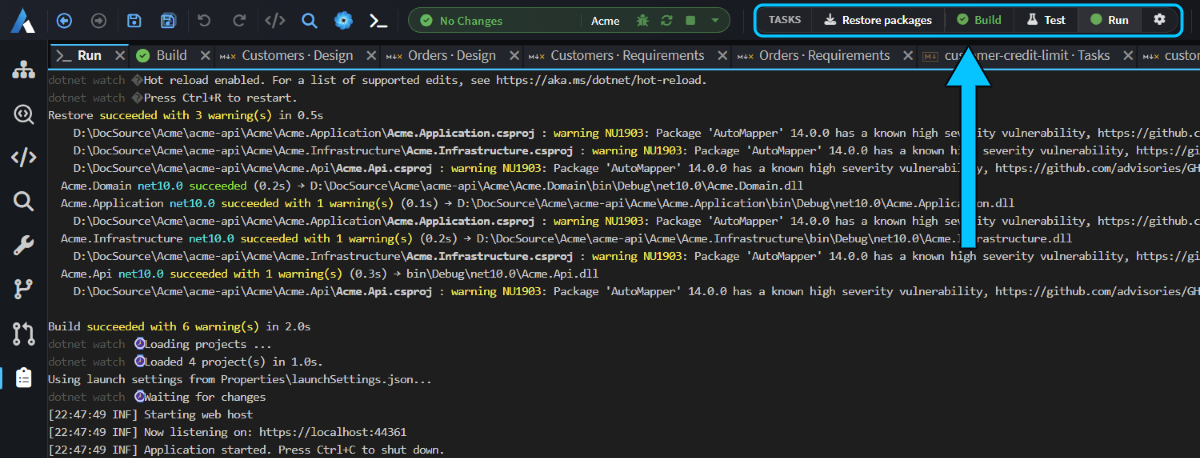 The solution's Restore packages task, then the application's. Build passed, and Run is serving the API.
Let the agent build and test with your tasks in the Solution Shell
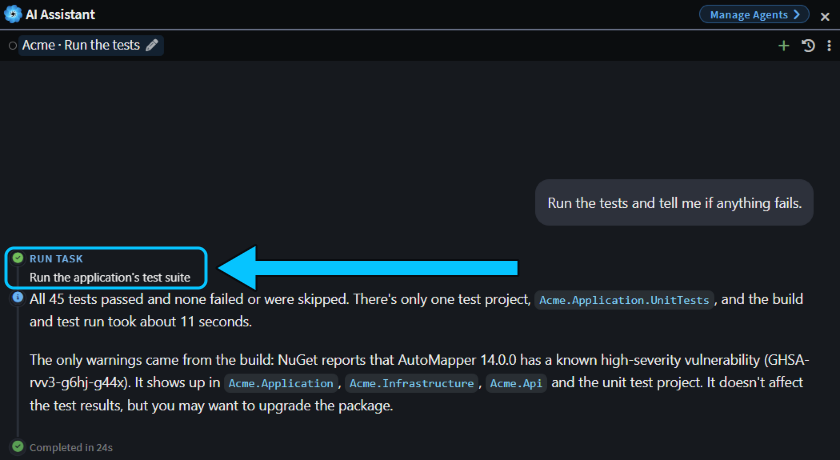
In the Solution Shell's AI Assistant, the agent sees your tasks and runs them when it needs to build, test or start your app. Its runs open in tabs and update the toolbar buttons too.
When we asked "Run the tests and tell me if anything fails.", the agent ran the Test task and reported that all 45 tests passed, 24 seconds later.
Note
Agents in the Agents Shell don't get your tasks yet. Asked to run one there, the agent ran the task's command in its own terminal instead, with the same result.
Keep your app running for the agent with a background task
A dev server or a watcher doesn't exit, so mark its task "isBackground": true and give it a readyPattern: a regular expression that matches the line it prints once it's up. Add a urlPattern that captures the app's address, or a previewUrl if the address is fixed, and the agent can start your app, leave it running and open it in the preview to check its changes.
This is the core of the Run task the agent wrote for the Acme API:
"run": {
    "label": "Run",
    "icon": "fa-play",
    "command": "dotnet watch --non-interactive run --project Acme.Api.csproj",
    "workingDirectory": "Acme.Api",
    "isBackground": true,
    "readyPattern": "Now listening on: https?://",
    "urlPattern": "Now listening on: (https?://\\S+)"
}
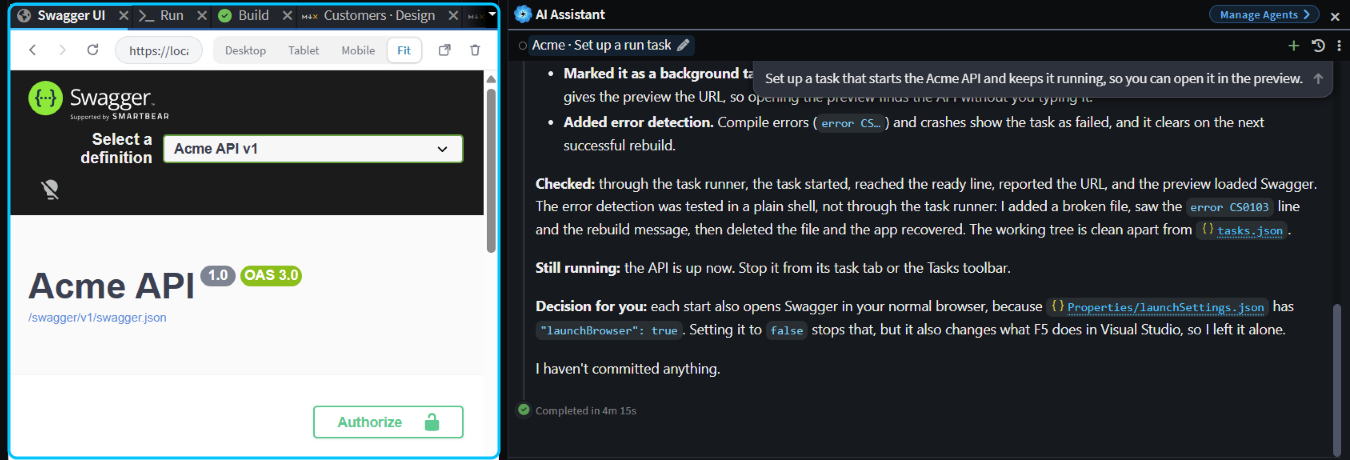 The agent started the Run task, and the preview found the API's address from it.
When you click a background task yourself, its button shows a green dot once the ready line appears. Clicking it again takes you to its output rather than starting a second copy, and closing its tab stops it.
Set up each new Agents Shell worktree with a setup task
When an Agents Shell chat runs in its own Git worktree, a second checkout of your Git repository in its own folder, the worktree only has committed files: packages aren't restored and tools aren't installed. Add "triggers": ["worktree.created"] to a task in the solution's tasks.json, and it runs in each new worktree before the agent starts:
"restore": {
    "label": "Restore packages",
    "icon": "fa-download",
    "command": "dotnet restore Acme/Acme.sln",
    "triggers": ["worktree.created"]
}
- Commit
tasks.json. It's read from the new worktree, so the branch you start from must have it. - List them in order. Setup tasks run one at a time, in the order they're listed. An application's
tasks.jsonis never used for them. - Hide them if you like.
"hidden": truekeeps a task off the toolbar, and it still runs.
While they run, the chat shows Running worktree creation tasks… with a Cancel link, and each task's output opens in a tab beside the chat.
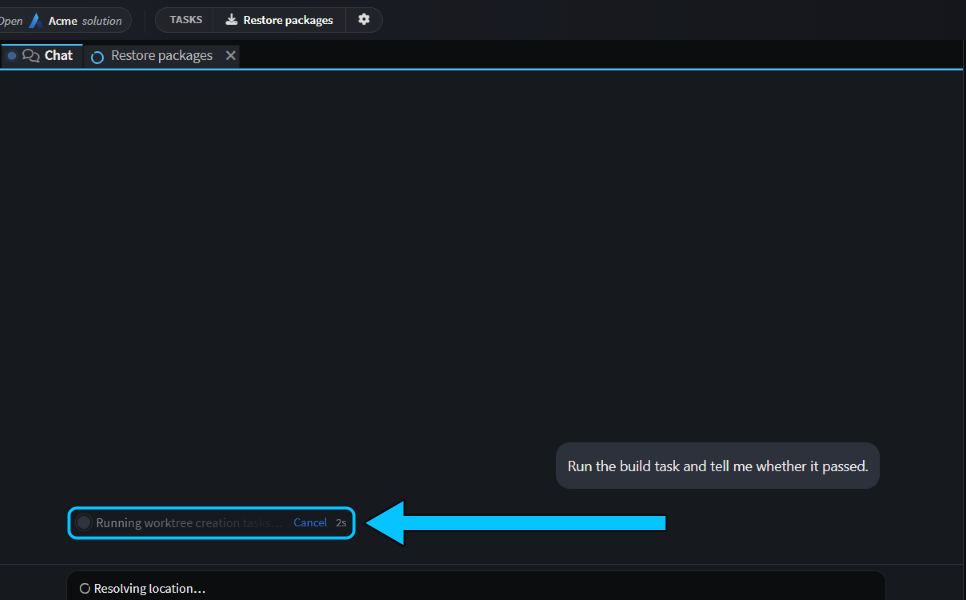
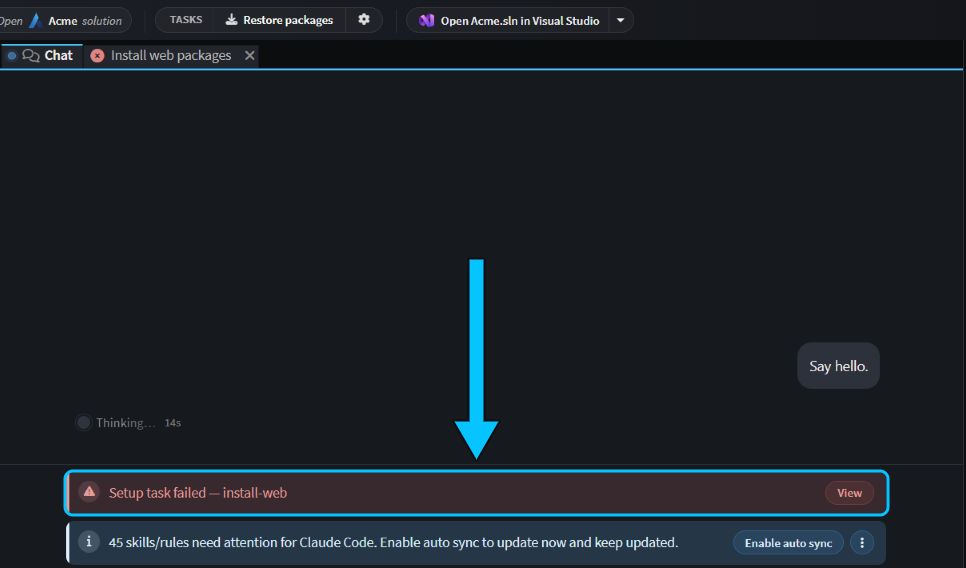
If a setup task fails, the agent still starts, and the chat shows Setup task failed with the task's name. Click View for its output. The agent isn't told, so mention it in your prompt if it matters.
Tip
To copy git-ignored files such as .env into each new worktree instead, list them in .worktreeinclude. See Run agents in parallel.
Fix a failed task with AI
When a task fails, its tab shows Resolve with AI. Click it to start a chat that's given the task's output and asked to find the cause, fix it and run the task again.
To have that happen as soon as a task you clicked fails, turn on aiAutoFix, with the error parser that suits its output: dotnet for .NET builds, or generic for anything else.
"build": {
    "label": "Build",
    "command": "dotnet build",
    "aiAutoFix": { "enabled": true, "errorParser": "dotnet" }
}
With a typo in a query handler, clicking Build failed and started a fix chat straight away. The agent put the line right and ran Build again, and the button turned green 27 seconds later.
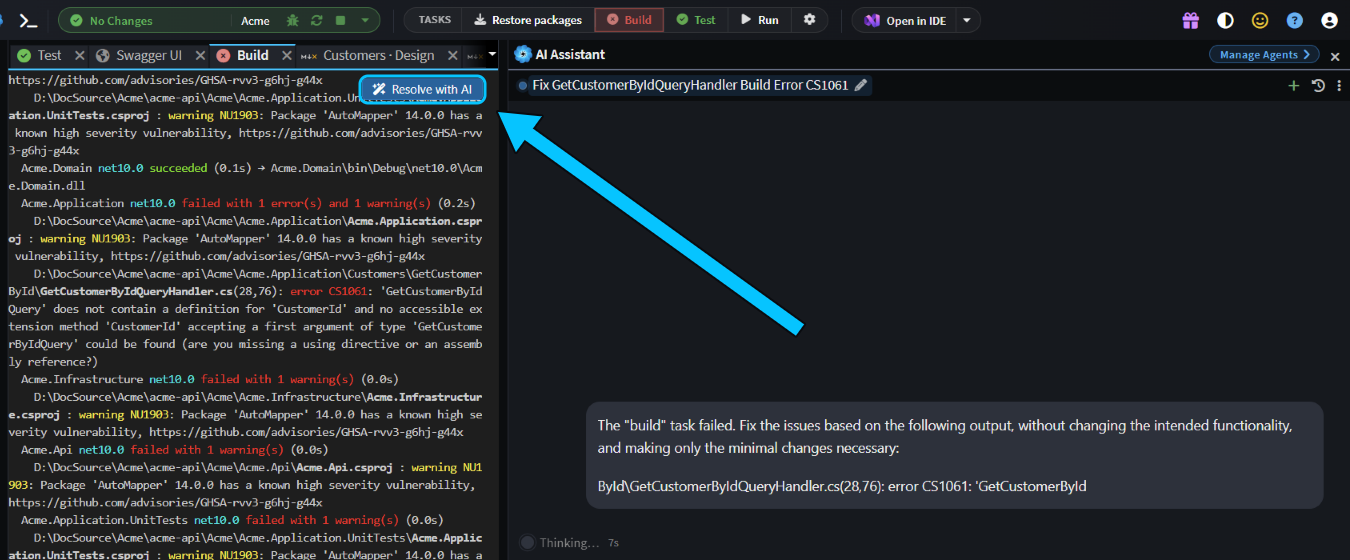 Build failed, and
aiAutoFix started a fix chat by itself.
Related articles
- Terminal & Tasks - every
tasks.jsonfield, and the terminal. - Run agents in parallel - running chats in their own worktrees.
- Open pull requests that prove they work - have the agent check its change with your tasks, an AI review and your running app, then open a pull request that shows it.
- Agents Shell and Solution Shell - how the Agents Shell and the Solution Shell differ.