Intent.AI.Blazor
The Intent.AI.Blazor module enables AI-powered implementation of Blazor UI components using pre-engineered prompt templates. This module leverages Large Language Models (LLMs) to generate production-ready Blazor views based on your application's domain models, service contracts, and existing component patterns.
Note
To use this feature, ensure that the required User Settings have been completed — including a valid API key for your selected AI provider.
Tip
For a comprehensive tutorial on using this module to build Blazor UIs, see Blazor UI Modeling with AI.
What This Module Provides
The Intent.AI.Blazor module provides:
- AI Implementation Context Menu - "Implement with AI" option on UI Page and Component elements
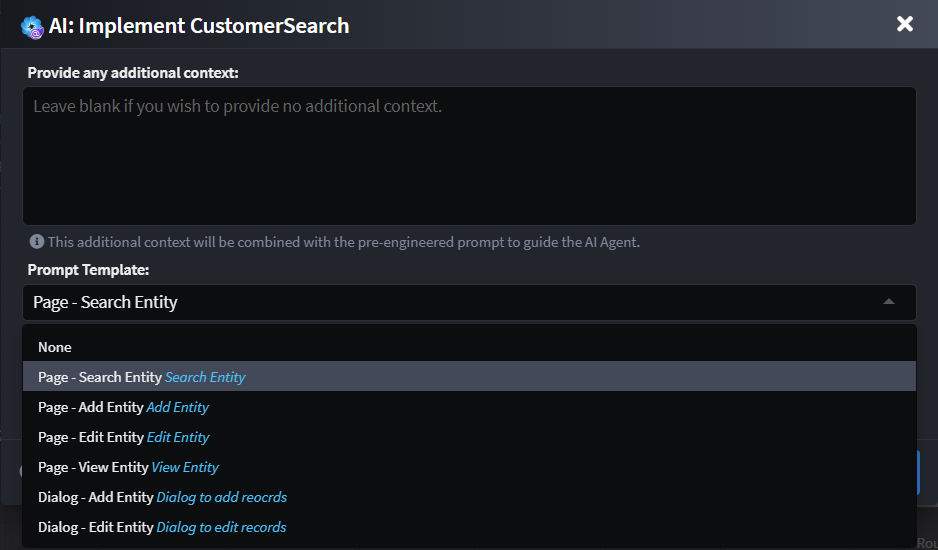
- Pre-Engineered Prompt Templates - Six specialized templates for common MudBlazor patterns:
- Search Entity - List/grid views with filtering, sorting, and pagination
- Add Entity - Create forms for new records
- Edit Entity - Update forms for existing records
- View Entity - Read-only detail views
- Add Entity Dialog - Modal dialogs for creating records
- Edit Entity Dialog - Modal dialogs for updating records
- Context-Aware Generation - AI considers your domain models, DTOs, services, and existing components
- MudBlazor Integration - Generated components use MudBlazor controls with best practices
- Customizable Prompt Templates - Extend or replace templates to support different component libraries
Implement with AI
Once you have modeled your UI components in the UI Designer, you can use AI to generate the View implementation.
Note
Ensure your Software Factory changes have been applied before running AI prompts, as generated code provides context for the AI.
Basic Workflow
- Model your UI Component in the UI Designer (Page or Dialog)
- Run the Software Factory to generate the ViewModel (
.razor.cs) - Right-click on the Component → Implement with AI
- Review the AI dialog and optionally adjust settings
- Click Execute - Intent Architect submits a prompt to the LLM
- Review proposed changes as a code diff
- Apply changes to accept the AI-generated View (
.razor)
Influencing Factors
The quality and relevance of generated UI code depend on several factors:
Intent Modeling
Before using Implement with AI, ensure:
- Generated Code is up-to-date: Run the Software Factory to apply all outstanding code changes
- Component naming follows conventions: Use descriptive names like
CustomerSearch,AddCustomer,EditOrder - Service interactions are modeled: Use "Call Backend Service" to connect to Commands/Queries
- Navigations are defined: Model navigation operations and dialog invocations
Related Documentation
- Blazor UI Modeling with AI - Tutorial
- Intent.Common.AI - User Settings
- Intent.Blazor - Core Module
- Intent.Blazor.Components.MudBlazor
- Intent.AI.AutoImplementation - AI Business Logic
- Code Management - Intent Architect